

Connecting Claude to Kali using MCP (Model Context Protocol)

Author: Groot
Introduction
This is my first blog, so if you notice a few rough edges, that's part of the journey. Everyone starts somewhere, and this is where I start.
Recently I began experimenting with how AI can move beyond just generating text and actually interact with real systems. During this exploration I came across something called MCP — Model Context Protocol.
The moment I understood what MCP enables, I realized it opens up interesting possibilities — especially in automation and cybersecurity workflows.
In this blog, I'll walk through:
- What MCP is
- How it works conceptually
- How to connect Claude Desktop to a Kali Linux VM using an MCP server
- How AI can interact with real tools instead of just generating answers
Think of this more like a walkthrough of an experiment rather than a formal tutorial.
What is MCP?
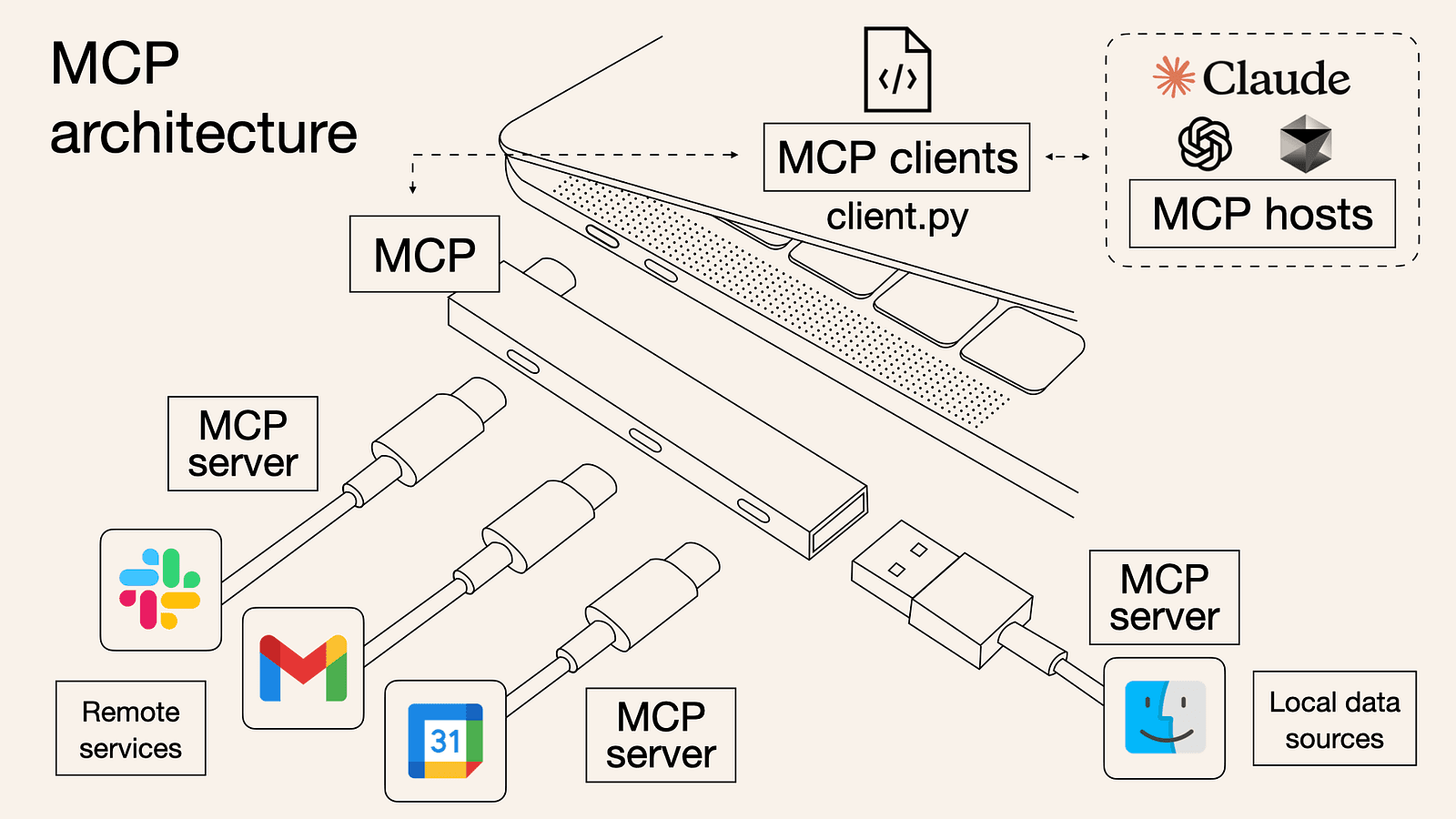
MCP (Model Context Protocol) is a standard that allows AI models to securely connect to external tools, applications, and data sources.
In simple terms, MCP acts as a bridge between AI models and real-world systems.
Normally, an AI model is limited to the knowledge it was trained on. It can generate text, answer questions, or explain concepts — but it cannot directly interact with your environment.
MCP changes that.
Through MCP, AI models can:
- Access files
- Query databases
- Run commands
- Call APIs
- Interact with external tools
Instead of guessing answers, the AI can retrieve real information from connected systems.
A Simple Example
Imagine asking an AI assistant:
"Show me the files in my project directory."
Without MCP, the AI would respond something like:
"I cannot access your local files."
Because it actually can't.
But with MCP enabled and connected to a filesystem tool, the process changes.
- The AI sees a filesystem tool available through MCP
- It sends a request to that tool
- The tool checks the directory
- The results are returned to the AI
- The AI replies with real information
Example response:
Your project folder contains:

server.py
requirements.txt
flag.txt
Here, MCP is the bridge that allows the AI to interact with the filesystem instead of hallucinating an answer.
AI Without Tools (A Quick Meme)
Without tools, interacting with AI can sometimes feel like this:
User: Can you check my system files?
AI: I cannot access your system.

User: Can you run a command?
AI: I cannot run commands.

User: Can you query my database?
AI: I cannot access databases.

User: Then what CAN you do?
AI: I can explain what a database is.
With MCP:
User: Run nmap on this target.
AI: Running scan using connected tool...
Here are the results.
That's the difference MCP introduces.
Using MCP for Cybersecurity
MCP becomes especially powerful when used in security automation.
Imagine an AI agent capable of:
- Running network scans
- Querying vulnerability databases
- Analyzing logs
- Executing security tools
- Correlating results automatically
Instead of manually chaining tools together, you can build AI-assisted workflows.
For this experiment, I used a framework called HexStrike AI.
HexStrike AI
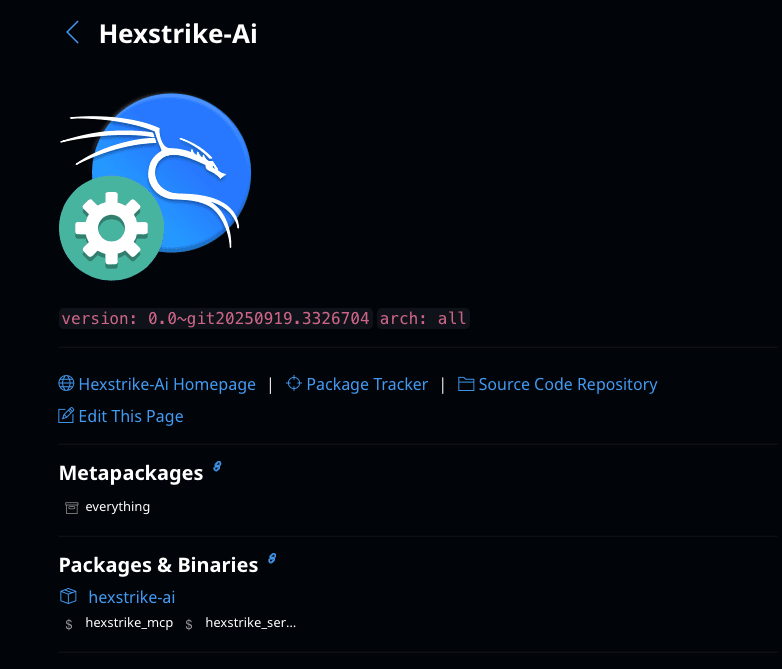
HexStrike AI is an AI-powered MCP cybersecurity automation platform.
It features a multi-agent architecture with autonomous AI agents and vulnerability intelligence capabilities.
The version used in this setup is:
HexStrike AI MCP v6.0
The project was developed by Muhammad Osama.
The package contains two main components:
hexstrike_mcp
hexstrike_server
Component Overview
hexstrike_mcp
Acts as an MCP client.
In this setup we won't use it directly — Claude Desktop will use it to access the tools.
hexstrike_server
Acts as the MCP server that exposes tools to the AI.
This server will run inside Kali Linux.
Environment Setup
For this setup I used:
- Kali Linux VM
- Claude Desktop
- HexStrike AI
Before continuing, ensure your VM network is set to:
Bridged Network
This allows the host machine and VM to communicate directly.
Installing HexStrike AI
Install the tool inside Kali using:
sudo apt install hexstrike-ai
The tool will be installed under:
/usr/share/hexstrike-ai
Navigate to the directory:
cd /usr/share/hexstrike-ai
Here you will find both the client and server scripts.
Modifying the MCP Server
By default, the MCP server only runs on:
127.0.0.1
This means it can only be accessed inside the VM.
Since Claude Desktop runs on the host machine, we need to modify the server so it listens on all network interfaces.
This also helps when using Cloud VMs or Proxmox environments.
Open the server file:
sudo nano hexstrike_server.py
Locate the API configuration and modify it as follows:
# API Configuration
API_PORT = int(os.environ.get('HEXSTRIKE_PORT', 8888))
API_HOST = os.environ.get('HEXSTRIKE_HOST', '0.0.0.0')
Setting the host to 0.0.0.0 allows the server to accept connections from the network.
Finding the VM IP Address
We already know the port is:
8888
Now we need the VM's IP address.
Run:
ip a
Look for an address similar to:
192.168.0.105
Starting the MCP Server
Start the MCP server:
sudo hexstrike_server
You should see output similar to:
* Serving Flask app 'hexstrike_server'
* Debug mode: off

WARNING: This is a development server.
Do not use it in production.

* Running on all addresses (0.0.0.0)
* Running on http://127.0.0.1:8888
* Running on http://192.168.0.105:8888
This confirms that the MCP server is now accessible from the network.
Setting Up Claude Desktop
Install Claude Desktop on your host machine.
Currently it is available for:
- macOS
- Windows
Linux users can use Claude Code.
After installation:
- Download the
hexstrike_mcpclient from GitHub - Login with your Claude account
- Open Settings
- Navigate to Developer Options
- Click Edit Config
This opens the Claude configuration file.
Adding the MCP Configuration
Add the following configuration:
{
  "mcpServers": {
    "hexstrike-ai": {
      "command": "python3",
      "args": [
        "/Users/(username)/Downloads/hexstrike-ai-master/hexstrike_mcp.py",
        "--server",
        "http://<ip>:8888"
      ]
    }
  },
  "preferences": {
    "coworkScheduledTasksEnabled": false,
    "sidebarMode": "chat",
    "coworkWebSearchEnabled": true,
    "ccdScheduledTasksEnabled": false
  }
}
Replace the IP with your Kali VM's IP address and update the path to the hexstrike_mcp.py script.
Example:
http://192.168.0.105:8888
Save the file and restart Claude Desktop.
Testing the Setup
Now Claude should be able to communicate with the MCP server running in your Kali VM.
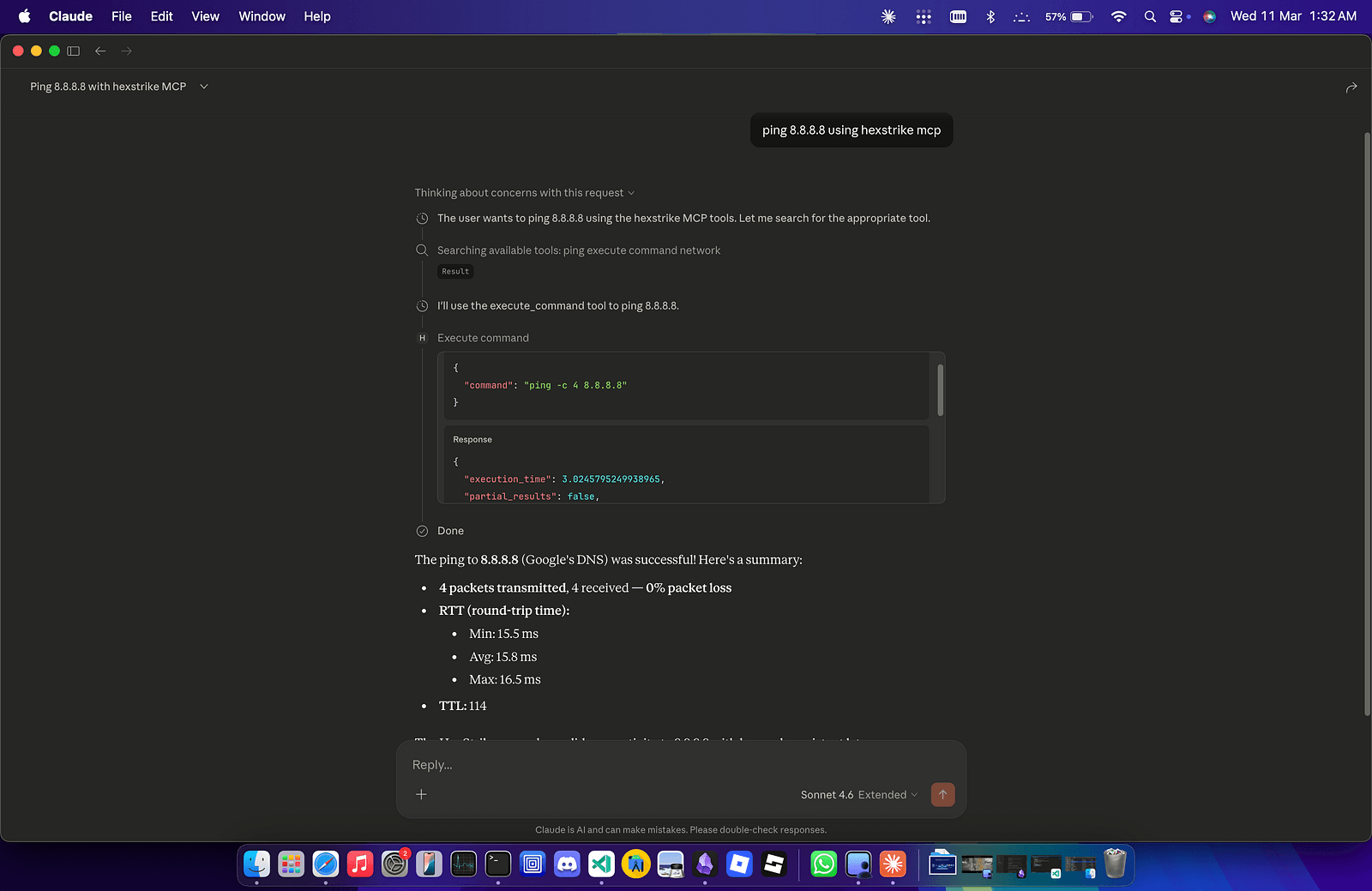
Try running a command through MCP by prompting from Claude Desktop.
Example:
ping 8.8.8.8 using hexstrike mcp host kali vm
HOST
Kali VM
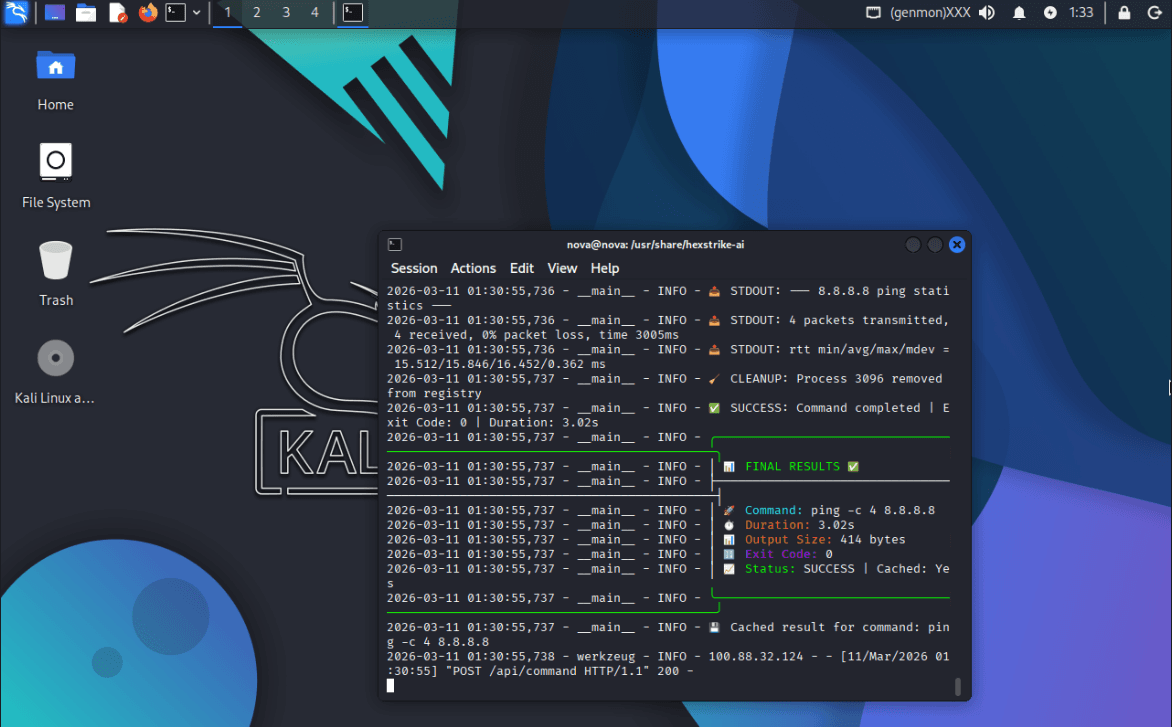
If everything is configured correctly, Claude will execute the command using the tools available in the Kali environment and return the result.
Final Thoughts
The first time you see an AI actually run commands on your machine, it feels a bit surreal.
It's like moving from:
"AI that explains things"
to
"AI that actually does things."
That shift is exactly what MCP enables.
For cybersecurity, this opens interesting possibilities such as:
- automated reconnaissance workflows
- AI-assisted penetration testing
- vulnerability intelligence correlation
- security tool orchestration
This blog covered a simple experiment: connecting Claude to Kali using MCP.
But the same idea can scale into much larger systems.
And since this is my first blog, consider this just the beginning.
More experiments coming soon.
— Groot